
Before you begin
Complete your local library setup, sign in to the owner account, and keep the host computer connected to the internet.
Local library features can be used without an account, but Remote Access credentials and service controls are tied to the signed-in library owner.
Open Remote Access settings
Open Settings, then go to Remote Access.
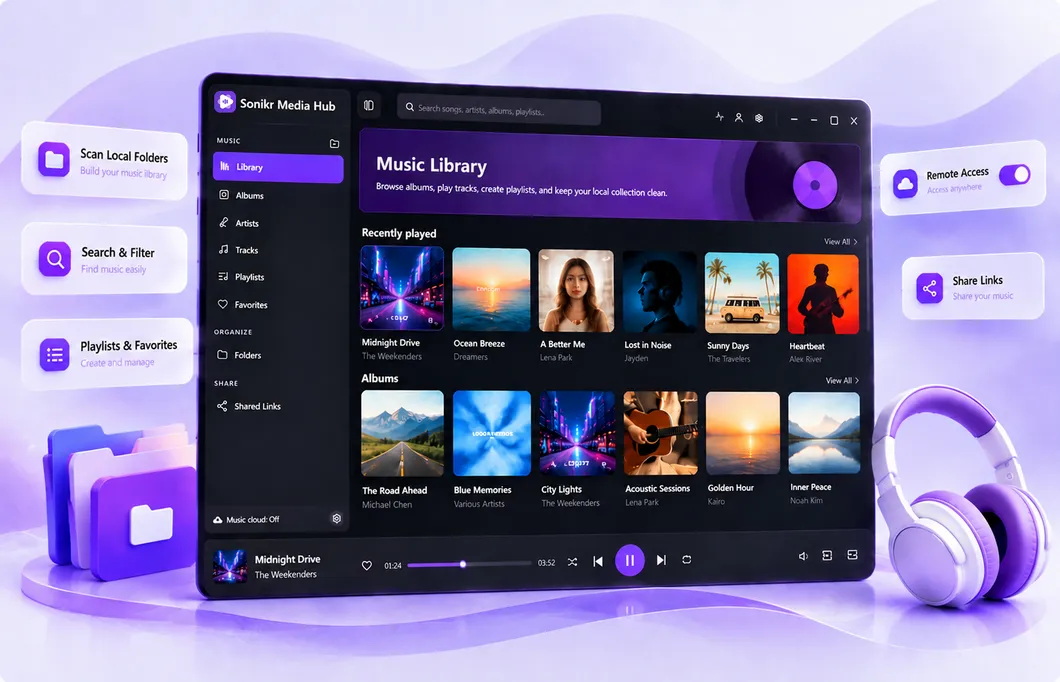
Turn on Remote Access
Turn on the Remote Access service. Sonikr starts the host service for your library.
Wait for the service to be Online
Check the status and wait until Remote Access shows Online before trying to connect from your phone or another device.
Open Connection info
Select Connection info. Copy the Host URL, account and generated password individually, or select Copy all.
Use the generated connection password shown by Sonikr. Do not substitute your main Sonikr account password unless the product explicitly instructs you to.
Keep the host computer available
The computer hosting the library and its background service must remain running and online for another device to connect. On Windows, Run in background and optional Launch with Windows can help keep the host available more consistently.
Troubleshooting
Remote Access does not become Online
Confirm that the host computer is online and that you're signed in to the owner account, then try again.
Connection info is unavailable
Confirm that Remote Access shows Online and that you are signed in to the owner account.
The app can't connect
Recheck the Host URL, account and generated password, confirm the host remains online, and check that the app you're using is on the supported apps list.