
Before you begin
Sign in to the owner account and make sure Remote Access is Online. Share only music you have permission to share.
Choose what you want to share
Open a supported track, album, playlist or favorite context. Shared Links are created for selected content rather than opening access to your entire library.
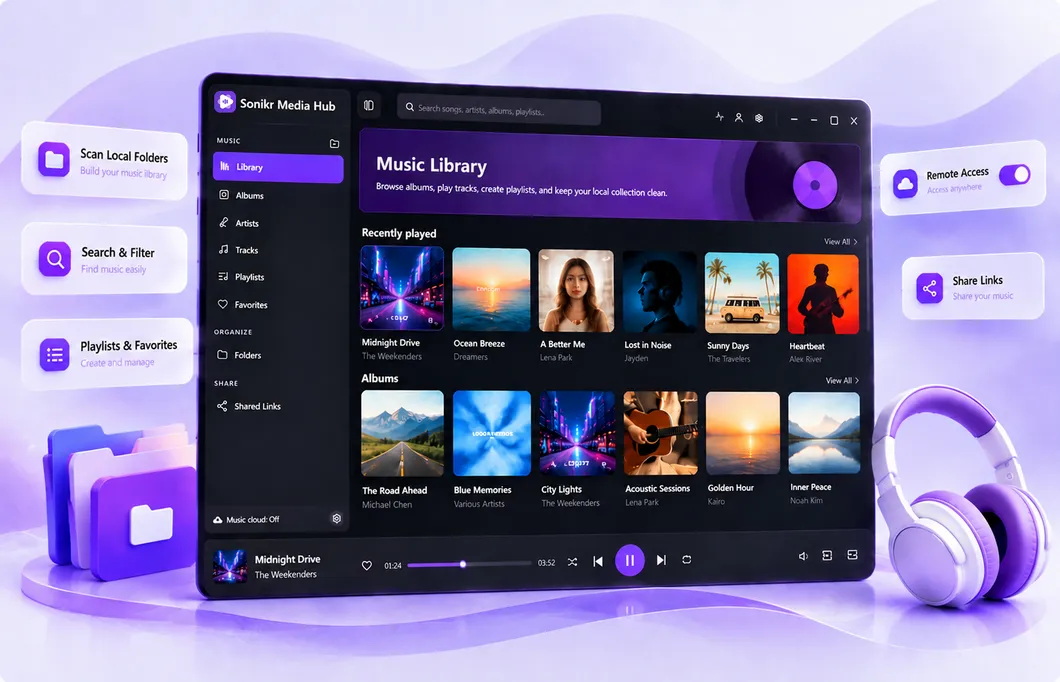
Open Share
Select Share and confirm the content included in the new link.
Set the expiration
Choose the Expiration date and Expiration time. Use a future time so the link can become active.
Choose whether downloads are allowed
Allow downloads starts off. Leave it off unless the recipient is authorized to save the shared files. You can also add an optional description.
Create and copy the link
Select Create and copy, then send the copied link only to the intended recipient.
The new link appears in Shared Links with its current status and expiration information.
Manage the link later
Open Shared Links from the sidebar to review existing links. You can search links, update expiration or Allow Downloads through Manage share, or delete a link that should no longer provide access.
Troubleshooting
Sonikr says sign-in is required
Sign in to the owner account, then try Share again.
Remote Access is off
Bring the Remote Access host service Online before creating or using a Shared Link.
The link has expired
An expired link no longer provides active access. Create a new link or update an eligible existing link with a valid future expiration.
I no longer want the link to work
Delete the Shared Link. People with a deleted link can no longer access it.