
Before you begin
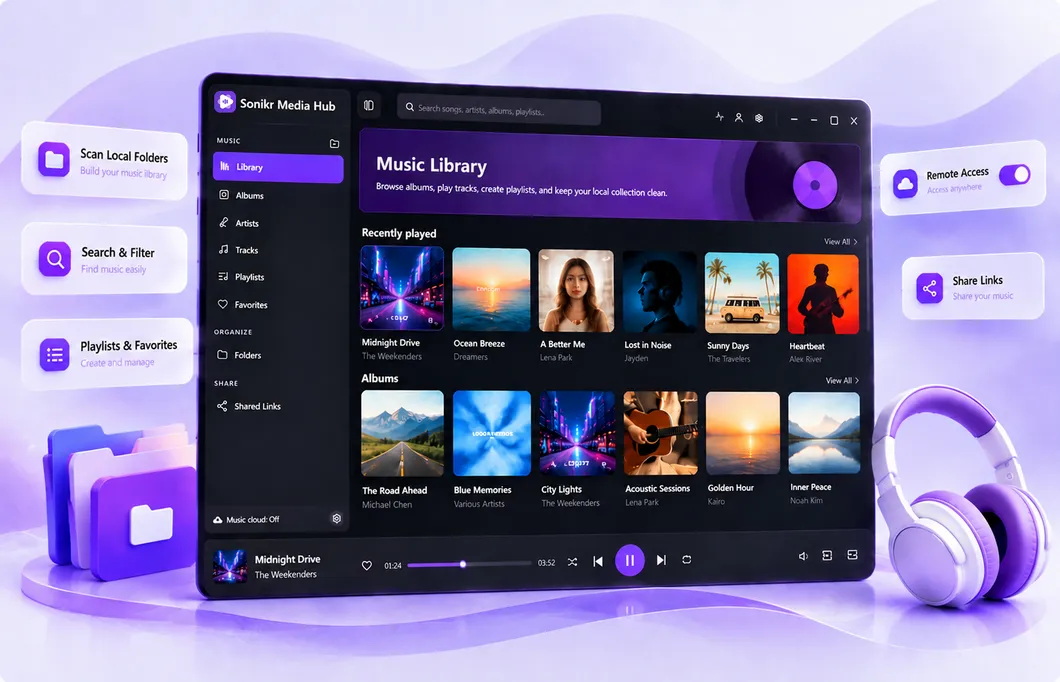
Make sure your music has already been added to the Sonikr library. You can create playlists from the Playlists page and add supported tracks or collections from other library views.
Create a playlist
Open Playlists and select Create playlist. Enter a playlist name of up to 80 characters. You can also add an optional description of up to 240 characters and a PNG, JPG or WebP cover, then confirm the creation.
Add music to the playlist
Select one or more tracks, or use a supported collection action, then choose Add to playlist. Select one or more existing playlists and confirm. You can also create a new playlist during the same action.
Edit playlist details
Open the playlist and select Edit. Change the cover, name or description, then select Save changes.
Manage playlist tracks
From the playlist detail page, you can play or shuffle the list, add tracks to the queue, share supported content, remove tracks, or inspect Song Information.
Removing a track from a playlist removes only the playlist reference. It does not delete the original music file.
Troubleshooting
A track is already in the playlist
Sonikr won't add the same track to a playlist twice.
I want to change the playlist name or cover
Open the playlist, select Edit, make the changes and select Save changes.
Will removing a track delete the file?
No. Removing a track from a playlist does not delete the music file from your storage.