
Before you begin
Add at least one music source and complete a scan first. The library views are generated from the music Sonikr has indexed from your configured sources.
Start from Library
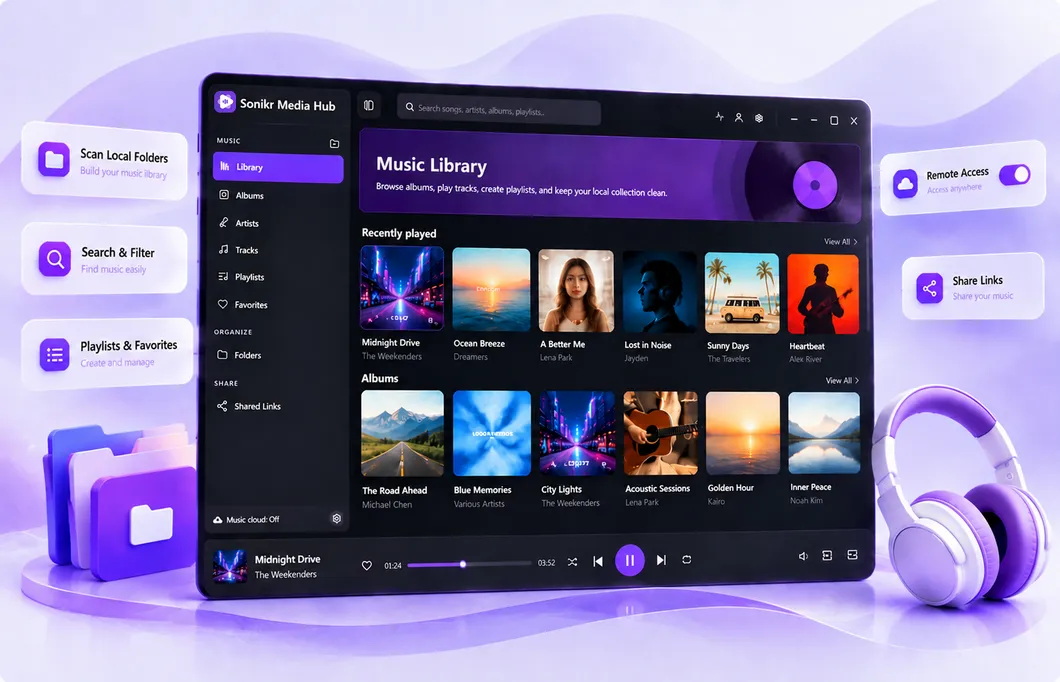
Open Library for an overview of your collection, including available recently played music, recently added albums and other sections generated from library activity.
Browse by album
Open Albums to browse album covers or use a detailed list. You can sort the collection, switch views and open an album to see its tracks and details.
Browse by artist
Open Artists to browse artist cards or rows. Artist details can include Overview, Albums, Songs and Playlists so you can stay within the artist context.
Use Tracks for the detailed list
Open Tracks when you need the most detailed song list. Configure visible columns, sort or filter results, hide unavailable files, or open Song Information for file-level details.
Search, sort and filter
The top search follows the view you are using. Search the current content, use the Sort menu, apply supported filters, or switch between grid and list views without changing the underlying music data.
Make the library personal
Use Favorites to keep supported songs, albums and artists together. Use Playlists when you want to build your own groups of tracks without moving the original music files.
Library views, Favorites and playlists organize how you use the collection in Sonikr; they do not require you to reorganize the source folders.
Troubleshooting
I cannot find newly added music
Run a Quick Scan for routine folder changes. Use Full Scan when you need a more complete refresh of configured sources.
Some tracks are unavailable
Reconnect the storage that contains them or use supported track filters to hide unavailable files while browsing.
I changed views and want to go back
Use Back from a detail page. Sonikr is designed to retain the prior search, sort, view and scroll context.