
Before you begin
Make sure the music you want to add is stored in a local folder that Sonikr can read. If you are setting up Sonikr for the first time and no library exists yet, Sonikr walks you straight into creating the library on this computer.
Sonikr Media Hub builds your library from folders on this computer, so setup stays simple — just choose a local music folder to get started.
Start your library
Open Sonikr Media Hub. Since no library exists yet, Sonikr opens directly into the initial setup on this computer.
Choose your music folder
Select a readable local folder that contains the music you want to add. Sonikr uses the folder as a music source for your library.
Add it as a library source
Give the source a clear display name, then add it to the library. Sonikr validates the path and prevents obvious duplicate sources.
Let Sonikr scan your music
After the source is added, Sonikr scans the folder and adds the detected music to your library. Once the scan finishes, the collection becomes available through Sonikr's library views.
Browse your new library
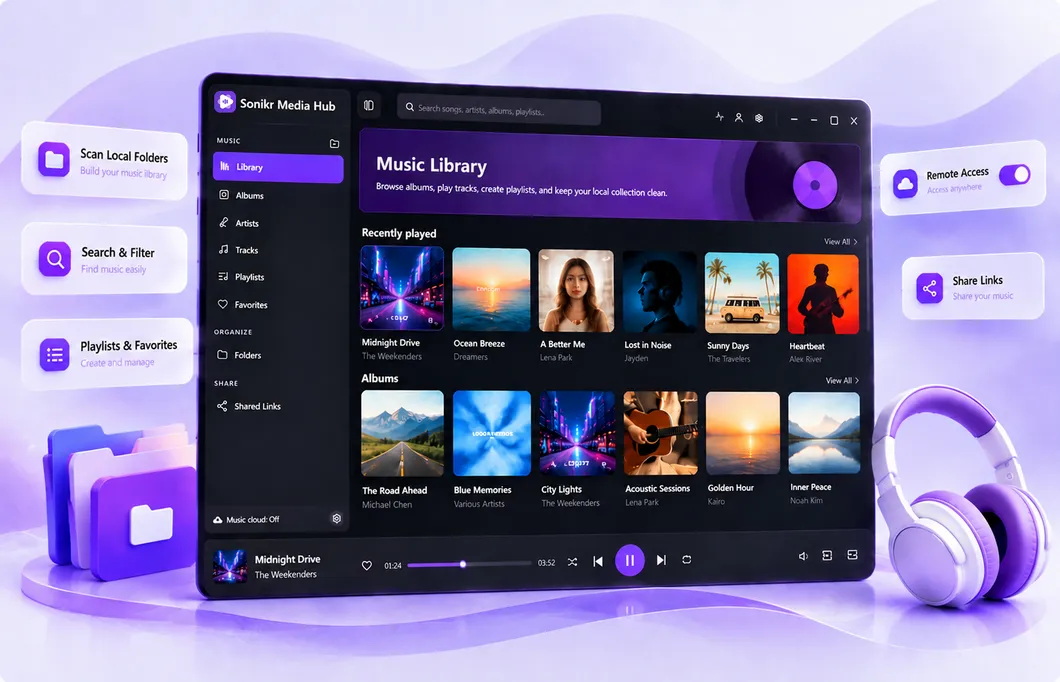
Open Library, Albums, Artists, or Tracks to browse the music Sonikr found. You can also return to Folders and Music Sources when you need to manage where the library comes from.
Your local music folder is now part of your Sonikr library. You can browse tracks, open albums and artists, and play music from the library.
When your music folder changes
You do not need to add the same source again when files inside it change. Use Sonikr's scan controls to refresh the existing source.
Use Quick Scan for routine changes to an existing music source.
Use Full Scan when you want Sonikr to perform a complete refresh of the source.
Troubleshooting
The folder or path is unavailable
Sonikr retains the music source when its path is temporarily unavailable. Check that the folder or drive is accessible, then scan the source again.
Some music files are missing
Review the missing files in Sonikr. You can export a CSV list for review or remove stale library records when needed.
Will removing a source or stale record delete my music files?
No. Removing library records or a source from Sonikr does not delete the original media files from your storage.