
Before you begin
Sonikr Media Hub is available for Windows and macOS. Have your computer ready before installation.
After installation, Sonikr will guide you through the first-time setup and help you create your personal library.
Install Sonikr Media Hub
Download the latest version for your computer, open the installer, and complete the setup on your Windows PC or Mac.
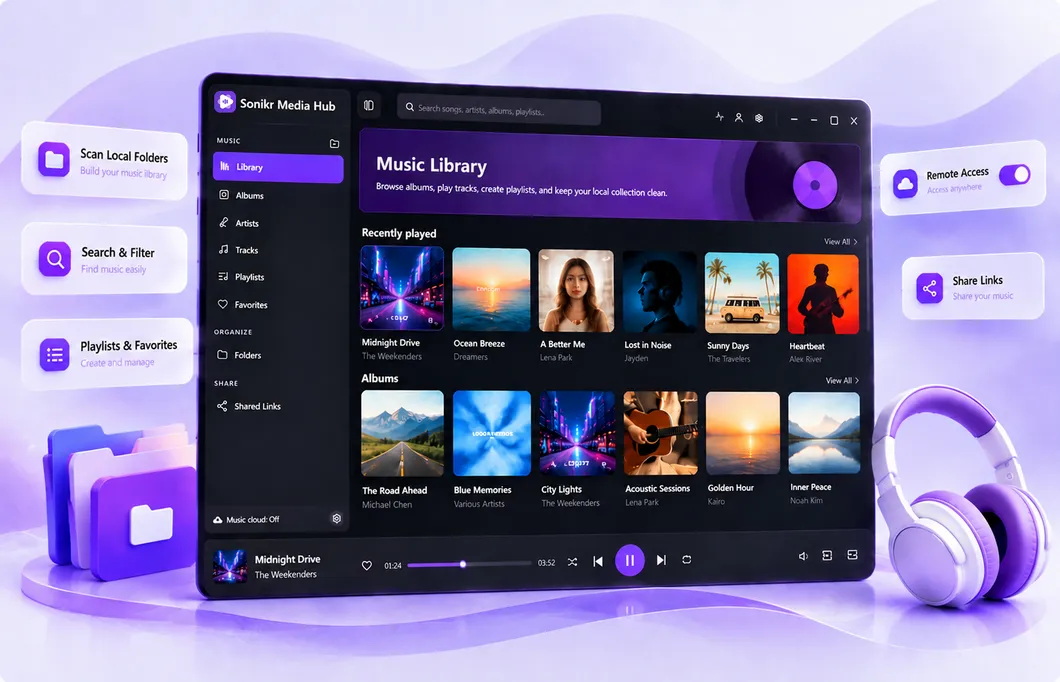
Open Sonikr Media Hub
Launch Sonikr after installation. If no library exists yet, the initial setup opens automatically.
Create your first library
Choose a local music folder and let Sonikr build your first library from the collection you already own.
Sonikr is ready to scan your music and build your personal library.
What to do next
Add a local music folder and let Sonikr scan your collection. Your music will appear in Library, Albums, Artists, and Tracks.
Troubleshooting
Sonikr opens without a library
Select a local music folder to continue the setup process.
My music is on an external drive
Make sure the drive is connected and accessible before adding the folder to Sonikr.